G-SMaRT Accounting is a web accounting system. It runs on a server in your office or on the internet, and you use it in a web browser on a computer, a tablet or a phone. Nothing has to be installed on your own device.
This chapter is for everyone who uses the program. It shows how to log in and look after your password, how every page is laid out, and the rules that apply in every module: how forms, lists and printouts work, supervisor approval, pending transactions, voiding and deleting, the closing date, classes and access rights. Read it once before you turn to the chapter for your own work.
About this manual
The manual has one chapter for each module of the program, in the order the modules appear in the menu, and one section for each page. Each page section tells you what the page is for, where to find it, what every box means, how to do each task step by step, what the program records in the books, and the messages you may meet.
Opening the manual from the program
- Every page has a Help button with a question-mark icon at the right end of its title bar. It opens this manual at the section for that page.
- The whole manual is also in the user menu: click your name at the top right of the screen, then User's Manual.
- The log-in page has a User's Manual link, so you can read the manual before you log in.
How the manual is written
- Words you see on the screen are in bold, exactly as the program shows them: Save & New, Customer:Job, Receive Payments.
- A menu path such as Customers > Create Invoices means: click Customers in the menu on the left, then click Create Invoices.
- Boxes marked Note, Tip, Important and Example give extra information, shortcuts, warnings and worked examples.
- The examples and pictures use the demo company, Sample Trading Company, with customers such as ABC Trading Corp., suppliers such as TechDistributors Inc. and items such as LAP-001 Laptop 14-inch i5 16GB. Amounts are in pesos, for example ₱12,500.00.
- The pictures were taken by a user who may open every page. What you see depends on the access your role gives you (see "Access: what you can open and do" later in this chapter).
If the manual describes a button or a menu entry that you do not see, your role does not allow that action. Ask your administrator if you need it.
Before you start
You need:
- A computer, tablet or phone with a current web browser, such as Chrome, Edge, Firefox or Safari.
- The address of your company's G-SMaRT Accounting, for example
http://server/accounting-system/. Your administrator gives it to you. Save it as a bookmark. - A username and a password. Your administrator creates your account in System Administration > User Accounts. If your company works with a Company Code, you can also create your own account from the log-in page and wait for approval (see Your Company: Company Owner and Employees).
Logging in
The log-in page is the first page you see. It shows the program's name and, under it, the name of your company.
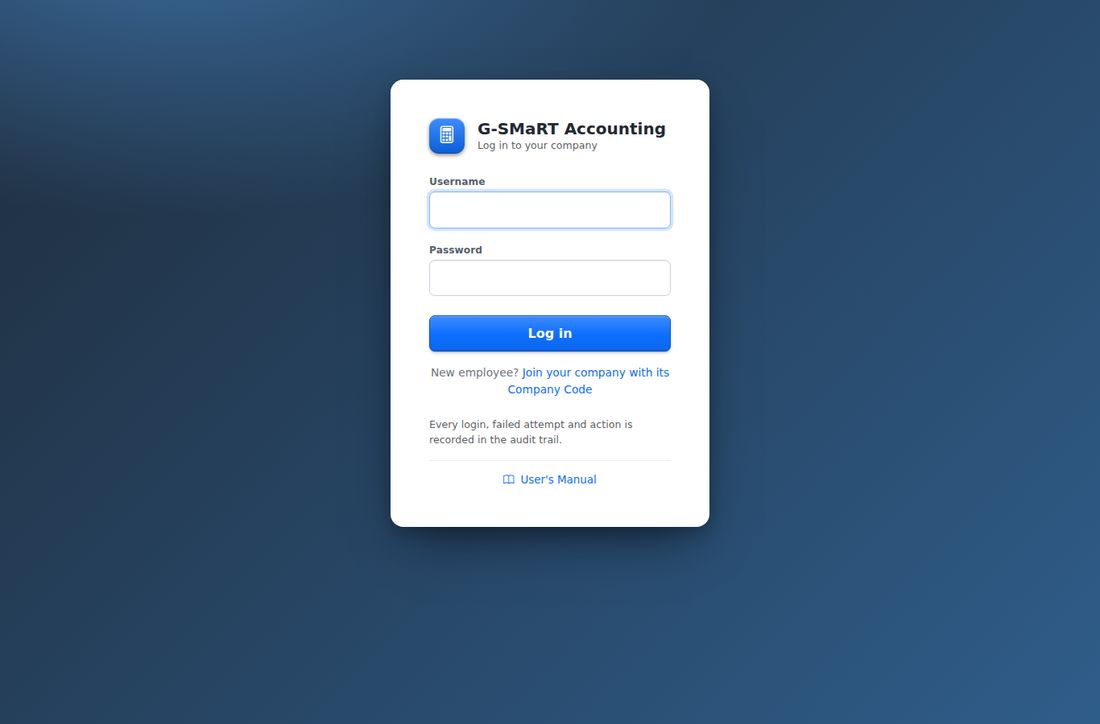
Step by step: log in
- Open the address of G-SMaRT Accounting in your browser.
- Type your Username.
- Type your Password. The letters are hidden as you type.
- Click Log in, or press Enter.
The Home page opens (see Home Dashboard). If you log in with a temporary password, or your password has expired, the Change password page opens first (see "Your password" below).
Right after you log in you may also see:
- A pop-up headed Maintenance due that lists the preventive maintenance tasks that are due, if you may open Preventive Maintenance. Click Later to close it, or Open Preventive Maintenance to deal with them. It comes back after each log-in, when a new day starts, and when the list of due tasks changes.
- A blue message saying that a memorized transaction was entered automatically, for example Memorized transaction "Office rent" was entered automatically for 09/27/2026. Memorized transactions set to be entered automatically are recorded on their due date, the first time anyone opens the program that day.
As the log-in page says, every log-in, every failed attempt and every action is recorded in the audit trail, with the user's name, the time and the computer's network address.
Messages on the log-in page
| Message | What to do |
|---|---|
| Invalid username or password. | Check the spelling and that Caps Lock is off, then try again. |
| Invalid username or password. 3 attempt(s) left before the account is locked. | The password was wrong. Type carefully: the account locks after the last attempt. |
| Too many failed attempts. The account is now locked. | Ask an administrator to unlock your account. |
| This account is locked. Only an administrator can unlock it. | Ask an administrator to unlock your account in User Accounts. |
| This account is inactive. Contact your administrator. | Your account was switched off. Ask your administrator. |
| Your registration is waiting for approval by your Company Owner. You can log in once it is approved. | You joined with the Company Code. Wait for the Company Owner to approve you. |
| Your registration was not approved. Please contact your Company Owner. | Your request to join was rejected. Speak to the Company Owner. |
| Your company's access is currently suspended. Please contact your Company Owner. | The whole company was switched off on the platform. |
| Too many failed log-in attempts from this computer. Please wait 15 minutes and try again. | Too many unknown usernames were tried from your computer. Wait 15 minutes. |
| You were logged out after a period of inactivity. | Your session timed out. Log in again. |
| You have been logged out. | You used Log out. |
When the program runs several companies
When several companies are kept in G-SMaRT Accounting, the log-in page says Log in to your company instead of showing a company name. You still type only your own username and password: the program finds your company from your username, and you can never reach another company's records. A New employee? Join your company with its Company Code link appears under the form; it is explained in Your Company: Company Owner and Employees. The Super Admin, who manages the companies, logs in on the same page and lands on the platform pages (see Super Admin: Managing Several Companies).
Your password
Your password protects your work and your name in the audit trail. Never tell it to anyone, and never let another person work under your log-in: every entry you save carries your name.
Password rules
Your administrator sets the rules in Company, Security & Closing Date. The Change password page always shows the rules in force. As delivered, a password must have:
- at least 8 characters,
- upper-case and lower-case letters,
- a number,
- a symbol, such as @ # ! or %,
- and it must not contain your username.
As delivered, a password expires after 90 days, and a new password must be different from the current one.
Changing your password
Where to find it: click your name at the top right > Change password.
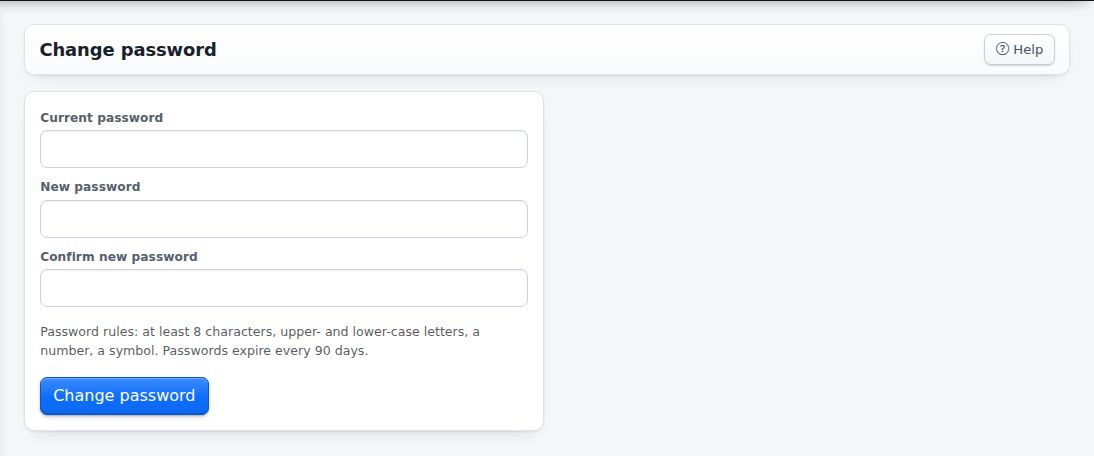
| Field | What to enter |
|---|---|
| Current password | The password you logged in with. |
| New password | Your new password, following the rules under the boxes. |
| Confirm new password | The new password again, to rule out a typing mistake. |
- Click your name at the top right, then Change password.
- Type your Current password.
- Type the New password.
- Type it again in Confirm new password.
- Click Change password.
The program says Your password has been changed. and opens the Home page. Use the new password from your next log-in.
| Message | What it means |
|---|---|
| Your current password is incorrect. | The first box does not match your password. |
| The new passwords do not match. | The second and third boxes differ. Type both again. |
| Choose a password different from your current one. | The new password is the same as the old one. |
| The new password must have at least 8 characters, a number. | The message lists the rules the new password breaks. |
Temporary passwords and expired passwords
- When an administrator creates your account or resets your password, you get a temporary password. At your first log-in the Change password page opens with the message Please replace your temporary password before continuing. Until you change it, every other page brings you back here. Only Log out still works.
- When your password is older than the number of days set by the administrator, the program shows Your password has expired. Please choose a new one. and opens the same page.
Forgotten password and locked account
The program does not send passwords by e-mail. If you forget your password, or your account is locked after too many wrong passwords (5 as delivered), ask an administrator. In User Accounts they can unlock your account and give you a temporary password, which you then change as described above. A successful log-in sets the count of wrong attempts back to zero.
Logging out and the automatic time-out
To log out, click your name at the top right, then Log out. Always log out when you leave a shared computer.
The program also logs you out by itself when you have not opened or saved a page for a while (30 minutes as delivered; the administrator sets the time). The next time you click, the log-in page opens with You were logged out after a period of inactivity.
Typing in a form does not count as activity. Only opening a page or saving does. If you spend a long time on one form, save it before the time-out runs out, or what you typed is lost when you finally press Save.
The main screen
After you log in, every page has the same frame: a dark bar across the top, the menu of modules on the left, and the page itself on the right, with its title bar at the top.
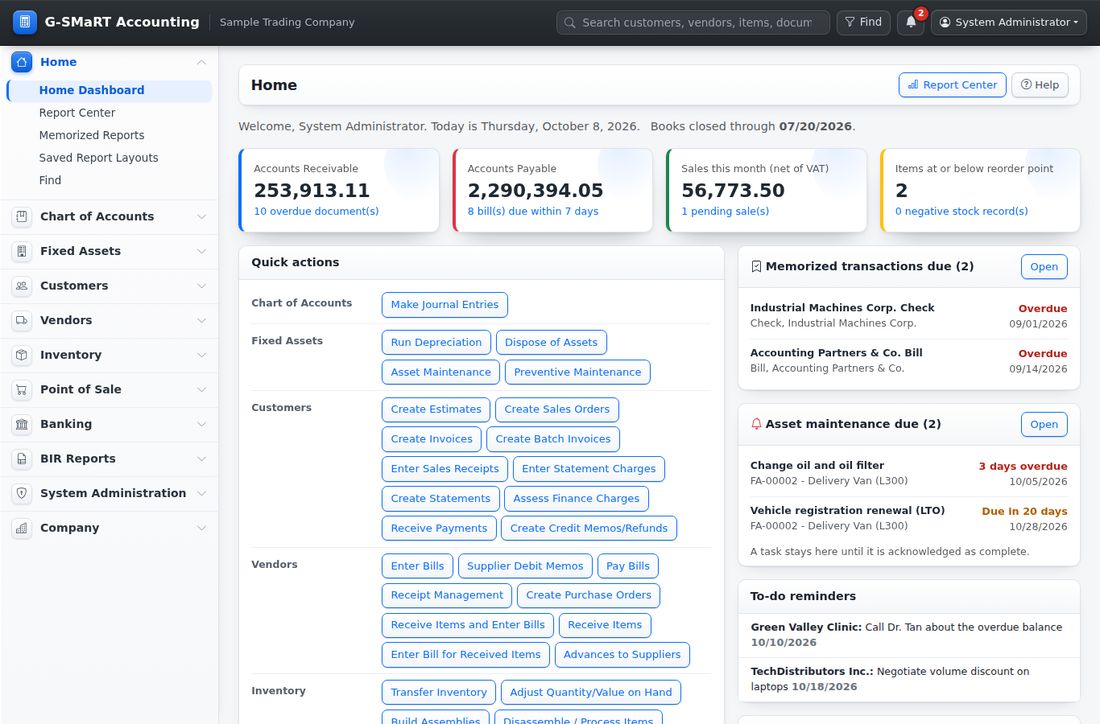
The top bar
| Part | What it does |
|---|---|
| G-SMaRT Accounting | Click the name at the top left to go back to the Home page from anywhere. |
| Company name | The company you are working in, beside the program's name. |
| Search box | Type a name, document number, reference or barcode and press Enter. The Search page lists what matches. |
| Find | Opens the Find page, which looks for transactions in every module with any combination of filters. |
| Bell | Shows how many preventive maintenance tasks are due, in a red circle. Click it to open Preventive Maintenance. |
| Your name | Opens the user menu. |
The search box, Find and the bell appear only for users who may open the pages behind them. When no maintenance task is due, the bell is an outline without a number.
The user menu shows your role (for example Administrator) and the entries Change password, User's Manual and Log out. A Company Owner sees Company Owner before the role names.
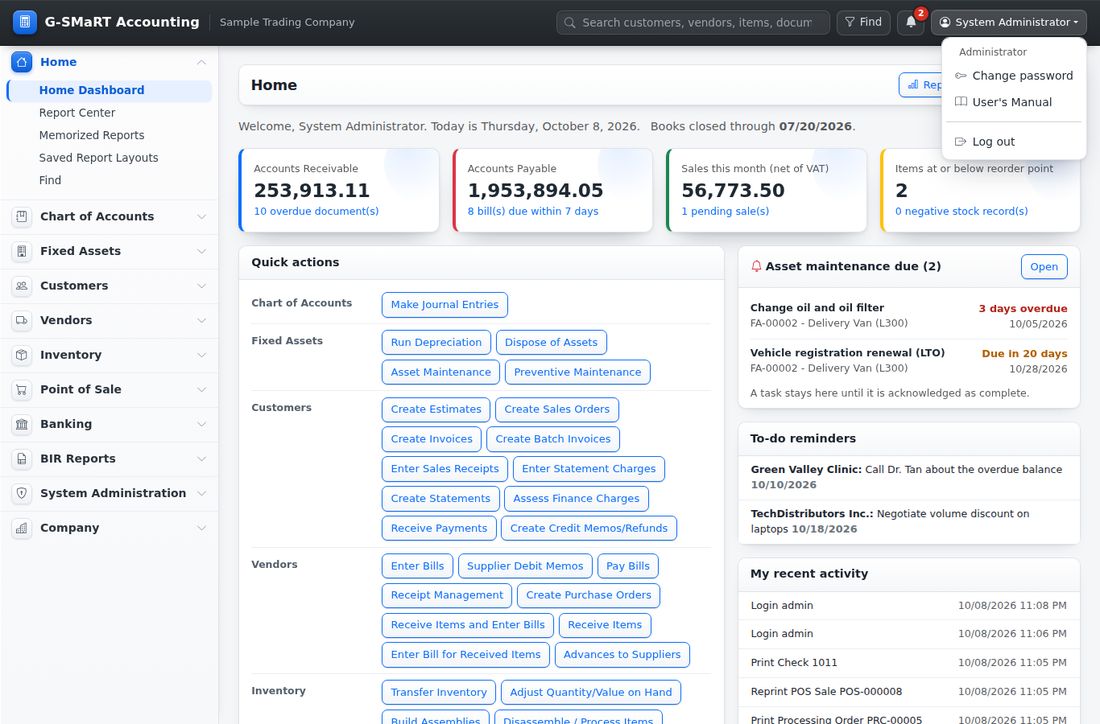
When the Super Admin works inside a company, a yellow strip under the top bar says so, and the user menu has Back to the platform instead of Change password.
The menu of modules
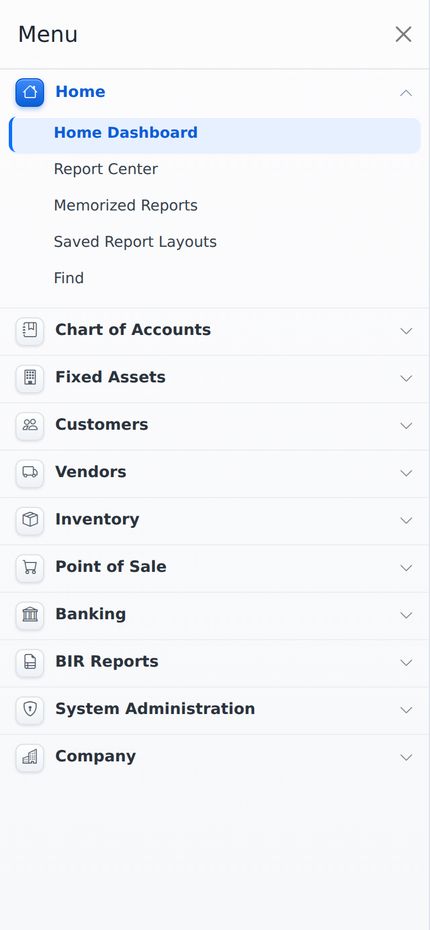
The menu on the left lists the modules: Home, Financial Set-up & Reports (called Chart of Accounts before version 29), Fixed Assets, Customers, Vendors, Inventory, Point of Sale, Banking, BIR Reports, System Administration and Company. Click a module to open its list of pages; click it again to close it. Opening one module closes the one that was open. The module of the page you are on opens by itself, and the page you are on is highlighted.
Inside a module, the pages are grouped under small headings such as TRANSACTIONS, LISTS and SETUP. The reports of a module are folded away under REPORTS with their number in brackets.
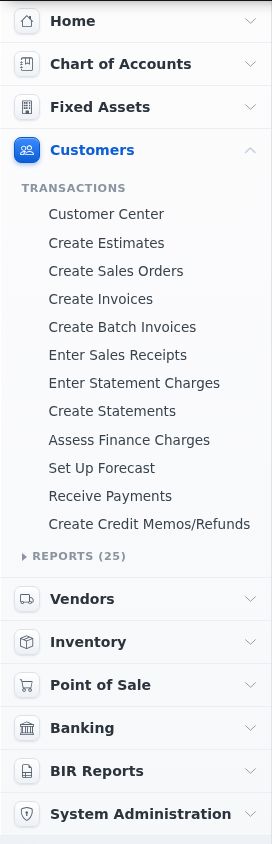
Click REPORTS to unfold the list of reports. Large modules divide their reports under grey sub-headings, such as Customer and Receivables Reports and Sales Reports. Click REPORTS again to fold the list away.
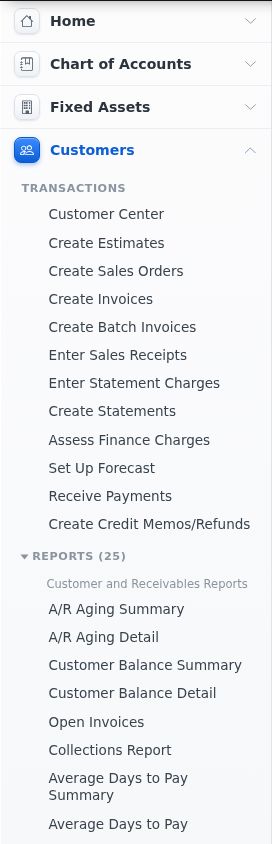
The menu shows only the pages you may open. Two users with different roles therefore see different menus. A module you have no page in does not appear at all.
The title bar of a page
Under the top bar, every page starts with a title bar. On the left is the page's name, for example Home, New Invoice or Invoice INV-00001. On the right are the page's own buttons, such as New, Export, Edit, Print or Report Center. At the right end is the Help button, which opens this manual at the section for the page.
Messages at the top of the page
After you save, void, delete or change something, a coloured message appears above the title bar:
- green for success, for example Your password has been changed.
- blue for information, for example a memorized transaction that was entered automatically,
- yellow for a warning, for example You were logged out after a period of inactivity.
- red for a problem that stopped the action.
Click the small cross at the right of a message to close it. The message goes away by itself when you open another page.
When a form cannot be saved, a red box with a warning sign appears above the form and says why, for example Choose an item for every line that has a description or amount. Everything you typed stays on the form. Correct what the message asks and save again.
The modules at a glance
Home. Where you start. The Home Dashboard shows your key figures, reminders and a button for every transaction you may enter. The Report Center lists every report you may open. Memorized Reports and Saved Report Layouts keep reports set up the way you like them, and Find looks for transactions in every module at once. See Home, Finding Things and Working with Reports.
Financial Set-up & Reports. The general ledger: the list of accounts, the Class List, Employees & Other Names, Memorized Transactions, Set Up Budgets, Make Journal Entries (including opening balances), Module Default Accounts (the accounts each module posts to) and Terms, Tax Codes & Other Lists. Its reports are the financial statements and the ledgers: Trial Balance, Balance Sheet, Income Statement, Statement of Cash Flows, General Ledger, Journal, Subsidiary Ledger, Schedule of Accounts, the budget comparisons, the statements by class, and the comparative income statements and balance sheets by month, quarter, year and your own ranges or dates. See Financial Set-up & Reports: Chart of Accounts and the General Ledger.
Fixed Assets. The Fixed Asset Register, Run Depreciation, Dispose of Assets, Asset Maintenance (repairs paid through a bill, a check or a cash voucher), Preventive Maintenance (tasks that fall due by date or by meter and remind you through the bell), Asset Categories and Asset Locations, with reports on depreciation, additions and disposals, and maintenance. See Fixed Assets.
Customers. Everything you sell and collect: the Customer Center, estimates, sales orders, invoices and batch invoices, sales receipts, statement charges and statements, finance charges, the sales forecast, customer payments, and credit memos and refunds. Its reports cover receivables (aging, balances, open invoices, collections) and sales (by customer, item, sales rep and site). See Customers and Receivables.
Vendors. Everything you buy and pay: the Vendor Center and Bill Tracker, purchase orders, receiving, bills, supplier debit memos, Pay Bills, and Receipt Management, which turns photos and e-mails of receipts into bills. Its reports cover payables (aging, balances, unpaid bills) and suppliers. See Vendors and Payables.
Inventory. Items and stock: the Inventory Center, the Item List, sites, units of measure, processing formulas, transfers between sites, quantity and value adjustments, assembly builds, disassembly and processing, physical counts, and item prices and price levels. For convenience the Inventory menu also shows Create Purchase Orders and Receive Items. Its reports cover quantities, valuation, stock status and processing. See Inventory.
Point of Sale. The counter: the POS Register, cashier shifts with cash drops and X and Z readings, POS receipts, returns and voids, and the POS terminals, with sales reports by item, category, cashier, payment method and hour. See Point of Sale.
Banking. Write Checks, Cash Voucher (petty cash and revolving fund payments), Use Register, Make Deposits, Transfer Funds and Reconcile, with the reconciliation reports and the Check Register. See Banking.
System Administration. For administrators: user accounts, roles, page access, effective access, the company details, security settings and closing date, data utilities, imports from CSV files, backups, and the one-time Multi-Company Setup. Its Audit Reports include the Audit Trail, Transaction History, voided and deleted transactions, user activity, log-in history and access changes. See System Administration.
Company. Company Profile & Code, Employees & Users and Join Requests: where the Company Owner hands out the Company Code and approves the employees who join with it. While the program runs a single company, Company Profile & Code only says that there is no Company Code yet. See Your Company: Company Owner and Employees.
The Super Admin's platform pages, which create and manage the companies, are not in this menu; they are described in Super Admin: Managing Several Companies. The Appendices at the end of the manual hold reference material.
Working with forms
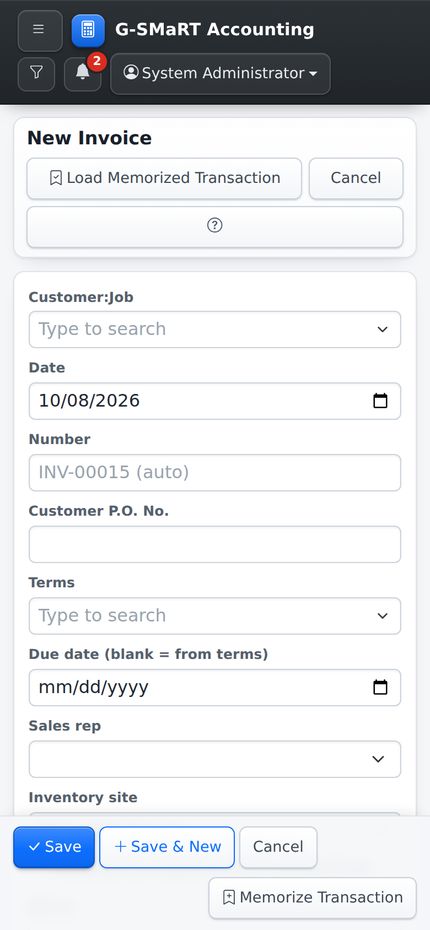
Every transaction in the program (an invoice, a bill, a check, a journal entry, an inventory adjustment) is entered on a form. The forms work the same way everywhere. The picture shows a new invoice as an example.
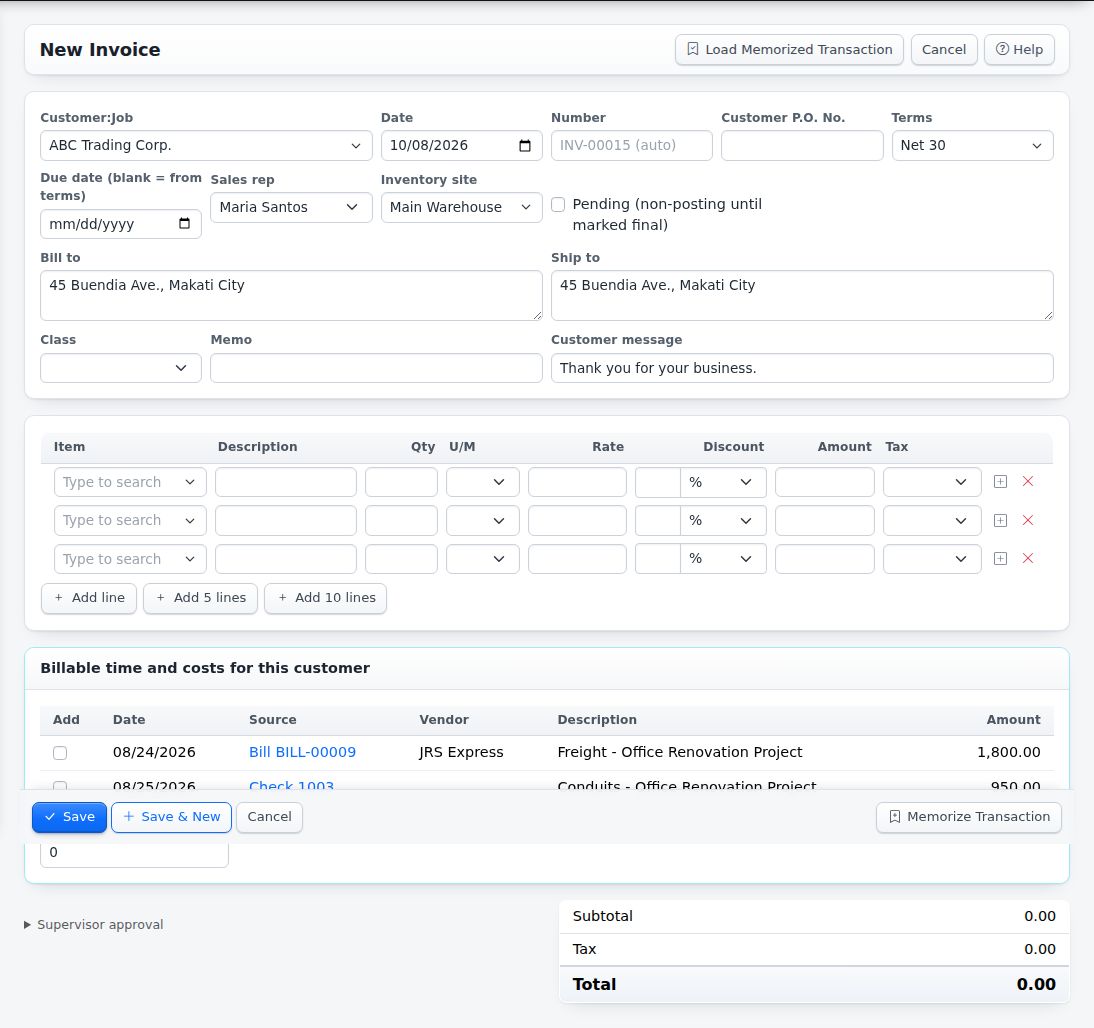
Opening a form
- From the menu: most document pages, such as Customers > Create Invoices, open on the list of that kind of transaction; click New in the title bar for a blank form. Some pages, such as Customers > Receive Payments, open on the form itself.
- From the Home page: the Quick actions buttons open the page, and for the common documents (estimates, sales orders, invoices, sales receipts, statement charges, credit memos, bills, purchase orders, checks and journal entries) they open a blank form directly.
- To change a saved transaction, open it and click Edit.
Typing in the boxes
- Dates are shown as month/day/year, for example 09/27/2026. Type the date or click the calendar button in the box to pick it. A new form starts with today's date.
- Amounts are typed without the peso sign. You may type commas (12,500.00) or leave them out (12500). The program keeps two decimals.
- Number boxes that show a greyed-out number with (auto), such as INV-00014 (auto), fill themselves in when you save. Leave them empty unless you need a number of your own.
- Boxes whose label says what happens when they are left blank, such as Due date (blank = from terms), can be left empty.
Drop-downs you can type in
Any drop-down with more than four choices (customers, suppliers, items, accounts, classes, terms and so on) is a box you can type in. It shows Type to search until something is chosen.
- Click the box, or move into it with the Tab key. The list of choices opens under it, with the current choice highlighted.
- Type any part of what you are looking for. The list narrows with every letter. Several words may be typed in any order: every word must appear somewhere in the choice. Choices that begin with what you typed come first, and the matching letters are marked.
- Click the choice you want, or move to it with the Up and Down arrow keys and press Enter.
Good to know:
- After you have typed, leaving the box with the Tab key takes the highlighted choice.
- Esc closes the list and keeps what was chosen before.
- To empty a box, delete the text and leave the box, or open the list and click the first entry (for example Clear this box), which appears when something is chosen.
- If nothing matches, the list says Nothing matches followed by what you typed.
- The part in brackets at the end of a choice, such as an account code or the kind of name, is shown in lighter letters.
- Short lists, such as a status or a yes-or-no choice, stay ordinary drop-downs.
On the invoice, click Customer:Job and type abc. The list shrinks to ABC Trading Corp. and its jobs, such as ABC Trading Corp.:Office Renovation Project. Press Enter to take the first one.
The lines of a transaction
The middle of most forms is a grid of lines, one for each item, service or account.
- Choose the Item (or the account). The program fills in the description, the unit, the price (the cost on purchase forms) and the tax code from the item, and a quantity of 1.
- Amount is worked out as Qty times Rate, less the Discount. The discount is either a percentage (%) or an amount off the line (Amt): choose which in the small drop-down beside the discount box.
- If you type the Amount yourself, the Rate is worked out from it.
- The tax of each line comes from its tax code. Prices on sales and purchase forms are VAT-exclusive: the VAT is added on top.
- Click Add line for another line, or Add 5 lines or Add 10 lines to add that many empty lines in one click. The new lines are lit up for a moment.
- To put a line in between two others, click the small square plus button at the end of the line that should come after it: an empty line is inserted just above that line, and the lines keep that order when the form is saved.
- Click the red cross at the end of a line to remove it.
- On forms with a site at the top (Default site for items on bills, item receipts and purchase orders, Inventory site on sales forms), the site chosen there is copied onto every line, including the lines added later, so you do not have to choose it on each line. A line can still be given another site. Changing the site at the top afterwards moves every line that still had the old one, and leaves alone the lines you changed yourself.
- There is no set limit to the number of lines: a bill or an invoice of several hundred lines is saved whole, and editing it later keeps every line. Long forms are sent to the server in one package for this reason.
 - The Subtotal, Tax and Total under the grid add up as you type. A negative total is shown in brackets, for example (1,250.00).
Saving
The buttons at the foot of the form stay in view while you scroll:
- Save records the transaction and shows it as saved.
- Save & New records it and opens a blank form, so you can enter the next one straight away. It appears only if you may create transactions on the page.
- Cancel leaves without saving.
If something is missing or wrong, nothing is saved and a red box above the form tells you what to correct.
If a very long form shows the message "This form has more fields than the server accepts at once (...), so nothing was saved", the page was opened before the program was updated: press Ctrl+F5 to load it again, enter the lines and save. Nothing was saved by the attempt.
Stock below zero: the Yes / No question
When Allow selling or moving stock below zero (with warning) is switched on (see "Stock below zero" in Inventory), saving a sales invoice, a sales receipt, a batch of invoices, a POS sale, an inventory adjustment or an inventory transfer that would leave an item below zero at a site is not done straight away. A window headed Stock will go below zero says "Saving the transaction will lead the inventory to a negative balance." It lists each item with its site, the quantity On hand and the quantity After saving, and asks Do you want to continue?
- Click Yes to save the transaction. The same button you pressed is used again, so Save & New still opens a blank form afterwards.
- Click No to go back to the form. Nothing has been saved; change the quantities, or cancel the transaction.
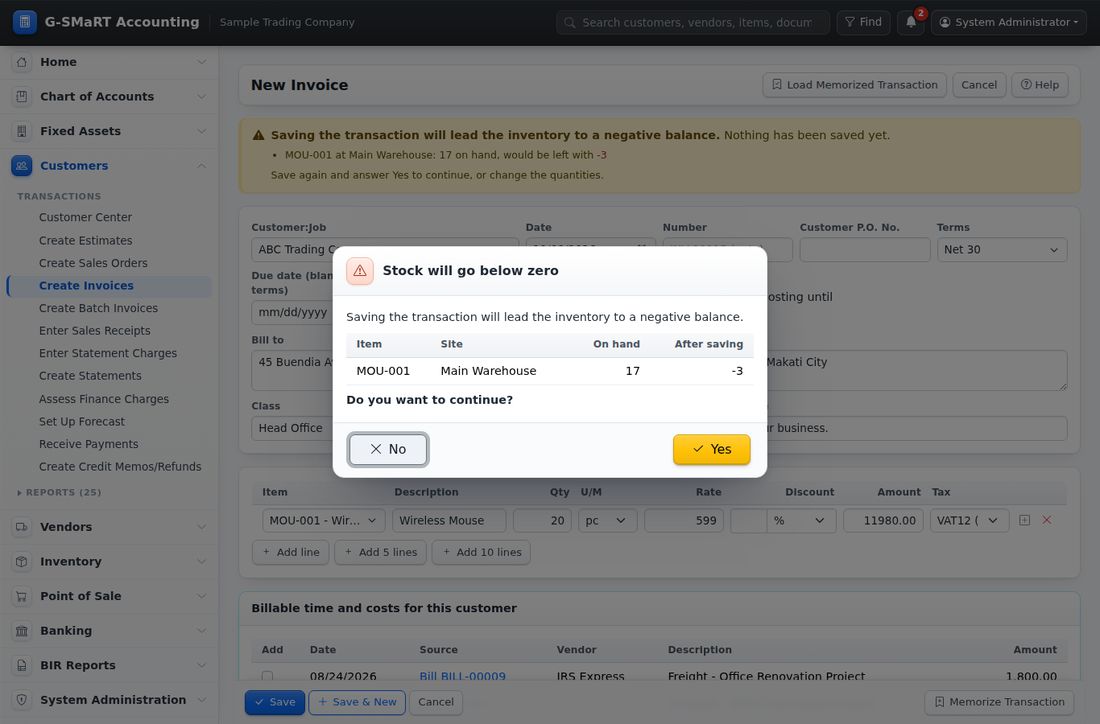
A yellow box above the form repeats the items while you decide. When the setting is switched off, there is no question: the transaction is refused with "Not enough stock: ...".
Memorize Transaction and Load Memorized Transaction
A transaction you enter again and again (a monthly retainer invoice, the rent check, an accrual journal entry, the regular order from a supplier) can be kept as a pro-forma and loaded into a new form whenever it is needed. The forms that have it: Create Estimates, Create Sales Orders, Create Invoices, Create Batch Invoices, Enter Sales Receipts, Enter Statement Charges, Create Credit Memos, Enter Bills, Supplier Debit Memos, Create Purchase Orders, Receive Items, Receive Items and Enter Bills, Write Checks, Cash Voucher, Make Journal Entries and Adjust Quantity/Value on Hand.
To memorize what is on the form:
- Fill in the form as if you were going to save it.
- Click Memorize Transaction at the right of the save buttons.
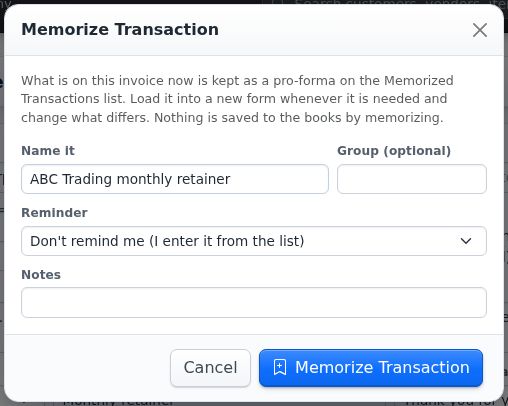
- In the box, type a name in Name it, a Group if you use groups, and choose the Reminder: Don't remind me keeps it on the list until you load it; Remind me when it is due (or Enter it automatically) asks for Every, Next due and Remind (days before).
- Click Memorize Transaction in the box. The form is checked as for saving; the message "Memorized as "...". It is on the Memorized Transactions list ... This invoice itself was not saved." appears and the form stays filled, so you can still save it.
To fill a new form from it:
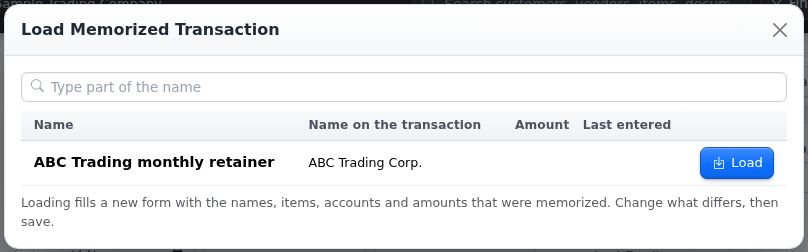
- Open the form for a new transaction and click Load Memorized Transaction in the title bar (it shows how many there are for this form).
- Type part of the name to find it, and click Load. If you had already typed something on the form, you are asked "Replace what is on the form with the memorized transaction?".
- The form opens with the names, items, accounts, amounts, site, class and memo that were memorized, under the note "Loaded from the memorized transaction ...". The date and the document number are today's and the next ones. Change what differs and save.
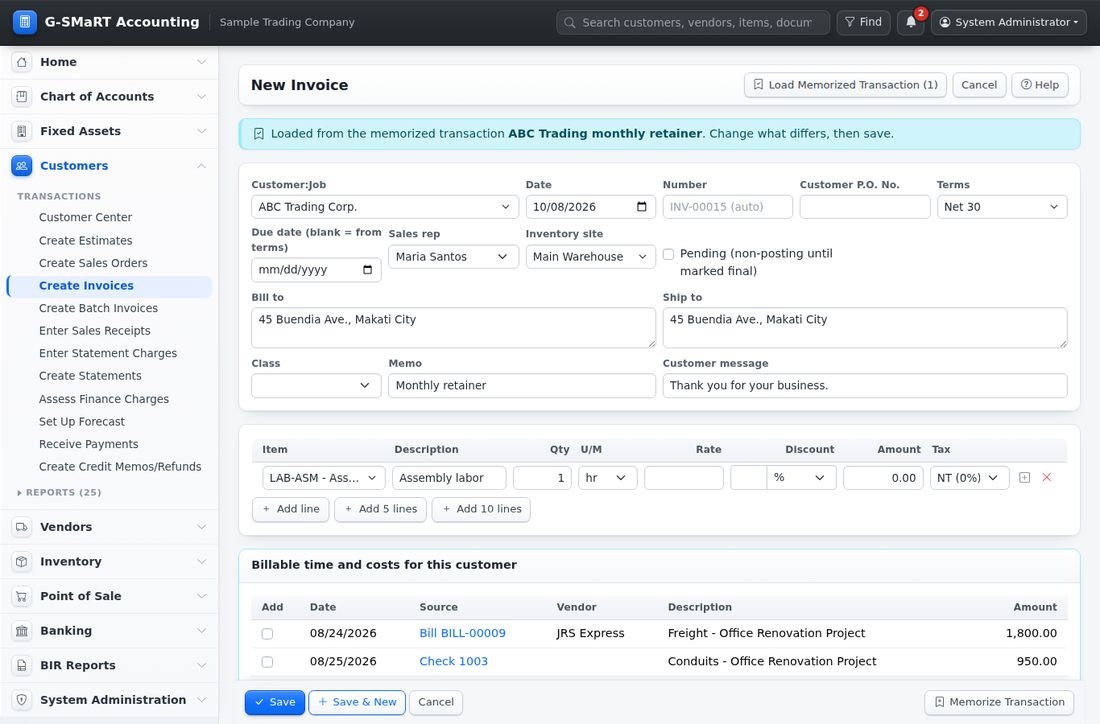
Memorizing records nothing in the books, and no supervisor approval is asked for it; the approval is asked when the transaction is saved. The memorized transactions are on Memorized Transactions, where they can also be entered, rescheduled or taken off.
The Class box and the "No class selected" question
Every transaction form has a Class box. Classes are your own way of dividing the books: branches, departments, projects or product lines. They are kept in the Class List. The class you choose is copied to every ledger line the transaction posts, so each financial report can be filtered by class, and the "by Class" statements show one column per class. Journal entries and cash vouchers can also carry a different class on each line.
When classes have been set up and you save a transaction without one, the program asks first. A window headed No class selected says: "This transaction has no class. It will be saved as Unclassified and will not appear under any class on the class reports."
- Click Choose a class to go back; the Class box is marked so you find it quickly.
- Click Continue saving to save it without a class.
On reports, transactions without a class are grouped as (Unclassified). When no class has been set up yet, the Class box says No classes yet (Class List) and the question is not asked.
Supervisor approval
Some actions go beyond what your role allows on its own, so a second person must approve them. The program then shows Supervisor approval is required: followed by the reason, for example "15.00% discount on LAP-001". It happens when:
- a discount on a line is larger than your Max discount % without approval,
- a price is changed from the standard price by more than your Max price change % without approval,
- a check, bill payment, cash voucher, refund, inventory adjustment, count adjustment or processing order is larger than your Max check / bill payment / adjustment amount without approval,
- a check, bill payment or refund above that limit is voided or deleted,
- at the counter: discounts and price changes beyond the cashier's limits, returns and refunds, voids of POS sales, X readings and closing the register (Z reading).
The Supervisor approval section has two tabs. Supervisor is here is for a supervisor standing beside you, who types their own username and password. Approval code is for a supervisor who is somewhere else: they generate a one-time code on Approval Codes and read it out to you, and you type it instead of their password.
Step by step: get an approval
- Save as usual. The form comes back with the reason and the Supervisor approval section open, marked required.
- Either ask a supervisor to type their username in Supervisor username and their password in Password (the password is hidden as it is typed), or open the Approval code tab and type the eight-letter code the supervisor gave you, for example AC7K-9MXT. The dash is put in for you, and small letters are read as capitals.
- Click Save again.
The approver's name is recorded on the transaction (Approved by) and in the audit trail, whichever way the approval was given: a code stands for the supervisor who generated it. A code works once: the moment the transaction is saved with it, it is spent, and if the save fails for another reason the code is given back so you can try again with it.
| Message | What it means |
|---|---|
| Approval failed: the supervisor username or password is wrong. | Try again. Failed approvals are recorded in the audit trail. |
| You cannot approve your own transaction. | Another person must approve it. |
| (username) is not allowed to approve on this page. | That supervisor's role has no Approve right on this page. |
| The approval code is not valid. Ask the supervisor for a new code. | No such code exists. Check the letters, or ask for a new one. |
| That approval code was already used. Each code works once: ask the supervisor for a new one. | The code was spent on an earlier save. |
| That approval code has expired. / ... was cancelled. | The code ran out of time, or the supervisor cancelled it. |
| That approval code was issued for another user. | The supervisor made the code for a different username. |
| That approval code is for (page), not for this page. | The supervisor limited the code to one page. |
| You cannot approve your own transaction with a code you generated. | A supervisor cannot use their own code. |
A user whose role has the Approve right on the page approves their own actions: the program does not ask them for a second person. On forms that may need approval, the Supervisor approval link under the lines can also be opened before you save, so the supervisor can type their details in advance.
Pending transactions
Invoices and sales receipts have a tick box Pending (non-posting until marked final). A pending sale is saved as a document but does not post to the books or take items out of stock. Use it, for example, while a customer's purchase order is being approved.
- A pending transaction shows the yellow note "This transaction is pending. It does not affect the books or inventory until it is marked final." Lists show it with the status Pending.
- To make it final, open it and click Mark as final. The form opens with Pending unticked and the note Pending is unticked — saving posts this sale. Click Save.
- The credit limit of the customer is checked when the invoice becomes final, not while it is pending.
- The Home page counts the pending sales, and the Pending Sales report lists them.
Assembly builds and processing orders can also be saved as pending when components are short; see Build Assemblies and Disassemble / Process Items.
Estimates, sales orders and purchase orders never post: they record a commitment only, and their page says "Non-posting document: it records a commitment and does not affect the ledger." Suspended POS sales do not post either until they are recalled and completed.
Questions before an action
Some buttons ask before they act, in a small window of the browser, for example Close this document? Remaining quantities will no longer be expected. Click OK to go on or Cancel to stop.
Lists, saved transactions and printouts
Transaction lists
Most document pages open on the list of their transactions, newest first, for example the Invoices list under Customers > Create Invoices. The transaction lists of invoices, sales receipts, estimates, orders, bills, checks, payments, deposits, transfers, journal entries, adjustments and builds all work as described here.
| Filter | What it does |
|---|---|
| From / To | The dates listed. The list opens on the last 90 days and the next 30 days. |
| Status | For example Open, Partially paid, Paid, Pending or Void. All lists every status. |
| Class | Appears once classes are set up. |
| Search | Part of a number, name or memo. |
Set the filters and click Filter. The columns are Date, No., Name, Reference, Memo, Class (once classes are set up), Total, Open (the amount still unpaid or unapplied, on invoices, bills and credits), Status and By (who entered it). A list that holds several kinds of transaction also has a Type column. Voided transactions are struck through. The list shows up to 500 transactions; narrow the dates to see older ones.
- Click the number of a transaction to open it.
- Click New in the title bar for a blank form.
- Click Export to download the list, as filtered, as a spreadsheet file (CSV) that opens in Excel.
A saved transaction
A saved transaction opens as a page titled with its type and number, for example Invoice INV-00001. It shows the details (date, number, status, customer or supplier, class, terms, who entered it and when, who approved it), the lines, the totals with the Open balance, the Related documents (what it was created from, what it was converted to, the payments applied), and, for users allowed to see them, the General ledger entries created automatically.
The buttons in the title bar depend on the transaction and on your rights:
| Button | What it does |
|---|---|
| Edit | Opens the form to change it. |
| Mark as final | Posts a pending invoice or sales receipt. |
| Opens the printout. | |
| Opens your e-mail program with a new message to the customer or supplier. | |
| Memorize | Saves it as a memorized transaction to enter again later. |
| Void / Delete | See "Voiding and deleting" below. |
| History | Opens its Transaction History: every change, by whom and when. |
| Back to list | Returns to the list. |
Other buttons carry the document to its next step, such as Create Invoice on a sales order, Receive Payment on an invoice, Pay Bill on a bill, or Close and Reopen on estimates and orders. They are explained in the chapter for each page.
The message that Email prepares holds a link to the printout. Only someone who can log in to G-SMaRT Accounting can open that link. To send a document to a customer, print it to PDF (see below) and attach the file to the message.
Printing and saving as PDF
Print on a saved transaction opens its printout on a plain page, without the menus, with two buttons at the top: Print and Back.
- Click Print on the saved transaction.
- Click Print at the top of the printout. The browser's print window opens.
- Choose your printer, or choose Save as PDF (the name differs slightly between browsers) to make a PDF file.
- Click Back to return to the transaction.
The buttons at the top do not appear on paper. Opening the printout of a check, bill payment or refund marks it as printed, and every printout is recorded in the audit trail. Reports print the same way; see Working with reports.
Voiding and deleting
A saved transaction that is wrong can be corrected with Edit. When it should not exist at all, you void it or delete it.
- Void keeps the document, with its number, but removes its effect on the ledger and on inventory. It stays in the lists, struck through, with the status Void, and its page shows VOID with the reason and the time. A voided transaction cannot be edited. Use it when the document was issued, for example a spoiled check.
- Delete removes the document completely. Its full content is kept in the audit trail. Use it for an entry made by mistake that was never issued.
Estimates, sales orders and purchase orders do not post, so they cannot be voided; delete them or close them. POS sales cannot be deleted, only voided.
Step by step: void or delete a transaction
- Open the transaction.
- Click Void (or Delete).
- Type the reason in Reason (required, recorded in the audit trail).
- If the action needs approval, let a supervisor type their username and password under Supervisor approval, or type the one-time approval code they gave you.
- Click Void transaction (or Delete transaction).
The program says, for example, Invoice INV-00005 was voided. or Invoice INV-00005 was deleted. A full copy is kept in the audit trail.
When voiding or deleting is refused
| Message | What to do |
|---|---|
| Payments or credits have been applied to it. Remove them first (edit the payment or credit). | Take the invoice or bill off the payment or credit first. |
| It is included in deposit DEP-00001. Remove it from the deposit first. | Edit the deposit and take the payment out of it. |
| It has been refunded (…). Void the refund first. | Void the refund check, then the credit. |
| It has already been converted or received in part. Close it instead. | Use Close on the order or estimate. |
| This transaction is already void. | Nothing to do. |
The Void and Delete buttons appear only if your role has the Delete/Void right on the page. The Voided and Deleted Transactions Summary report lists every void and deletion, so they can be reviewed.
The closing date
When a period's books are final, the administrator sets a closing date in Company, Security & Closing Date. The Home page then says, for example, Books closed through 07/09/2026.
From then on, transactions dated on or before the closing date can no longer be entered, edited, voided or deleted, except by users whose role has the special permission Can change transactions on/before the closing date or already reconciled. The same protection covers transactions already cleared in a bank reconciliation.
| Message | What it means |
|---|---|
| The books are closed through 07/09/2026. You do not have permission to record transactions dated on or before the closing date. | Use a date after the closing date, or ask an authorised user. |
| This transaction is dated on or before the closing date (07/09/2026) and cannot be changed. | The transaction belongs to a closed period. |
| This transaction has been cleared in a bank reconciliation. You do not have permission to change it. | It was ticked as cleared in Reconcile. |
A mistake found in a closed period is usually corrected with an entry dated in the open period, for example a journal entry, so that the figures already reported for the closed period stay as they were.
Access: what you can open and do
Every user has one or more roles, and the roles decide what the user may do. The administrator manages them in User Role Configuration and Page Access Configuration.
- Opening a page (View). A page appears in your menu, and can be opened, only if one of your roles allows it. A user override set by the administrator can allow or deny a single page for you alone; an override always wins over the roles.
- Actions on a page. For each page a role allows Create, Edit, Delete/Void, Print/Export and Approve separately. A button whose action you may not take does not appear: without Print/Export you see no Print or Export buttons, without Delete/Void no Void or Delete buttons.
- Special permissions. Some rights are set per role, apart from the pages:
| Special permission | What it controls |
|---|---|
| View costs and margins | Cost and margin columns on forms and reports. |
| View bank balances outside Banking | Bank balances on the Home page, the Chart of Accounts and Transfer Funds. |
| Max discount % without approval | Larger discounts need supervisor approval. |
| Max price change % without approval | Larger price changes need supervisor approval. |
| Max check / bill payment / adjustment amount without approval | Larger amounts need supervisor approval. Blank means no limit. |
| Can exceed customer credit limits | Saving an invoice over the credit limit, with a reason. |
| Can change the Chart of Accounts and default accounts | Changes to accounts and module default accounts. |
| Can change transactions on/before the closing date or already reconciled | Work in closed periods and on reconciled lines. |
| Can design report layouts (fonts, headings and footers, columns and rows) and save or share them | The Modify Report button on reports. |
- Sites and POS terminals. A user or a role can be limited to some inventory sites and POS terminals. Such users can only record transactions for their sites, and lists, site choices and site-based reports show only their sites.
- Administrators can open everything. In a company with a Company Owner, the owner can always open every page of the company, whatever the roles say.
When you try to open a page you may not use, the Access denied page says "You do not have permission to open" followed by the page's name. The attempt is recorded in the audit trail. Click Go to Home or Go back, and ask your administrator if you need the access. Administrators can check exactly what a user may do, and why, in Effective Access (View as User).
Who does what
The program comes with standard roles. Your administrator can change them or add roles of their own, so your company's roles may differ.
| Role | What it is for | Demo user |
|---|---|---|
| Administrator | Everything, including users, roles, page access, the closing date and the audit trail. | admin |
| Accountant | Financial Set-up & Reports, Fixed Assets, Banking, all reports; designs report layouts. | accountant |
| A/R Clerk | Customer transactions and the receivables reports. | arclerk |
| A/P Clerk | Supplier transactions, Pay Bills and the payables reports. | apclerk |
| Inventory Clerk | Items, sites, receiving, adjustments, builds, processing and counts. | invclerk |
| Sales Representative | Estimates, sales orders, invoices and the Sales reports. | salesrep |
| Cashier | POS sales, returns and cash drops at the assigned terminal. | cashier1 |
| POS Supervisor | A cashier's work, plus approvals and X and Z readings. | supervisor |
| Auditor | Views all transactions, reports and the audit trail; changes nothing. | auditor |
The POS Supervisor approves voids, refunds, price overrides and large discounts at the counter. The Auditor cannot open the set-up pages of System Administration, the Company pages, the POS Register or the shifts page. The Cashier and the POS Supervisor of the demo company work at Makati Counter 1.
The limits the standard roles start with (see the special permissions above):
| Role | Discount % | Price change % | Amount |
|---|---|---|---|
| Accountant | 0 | 0 | no limit |
| A/R Clerk | 10 | 5 | ₱50,000.00 |
| A/P Clerk | 0 | 0 | ₱100,000.00 |
| Inventory Clerk | 0 | 0 | ₱20,000.00 |
| Sales Representative | 5 | 0 | 0 |
| Cashier | 5 | 0 | 0 |
| POS Supervisor | 30 | 20 | ₱20,000.00 |
A limit of 0 means that every discount, price change or amount of that kind needs a supervisor's approval. The Administrator has no limits. Of the other special permissions, the Accountant may view costs and bank balances, change the Chart of Accounts and design report layouts; the A/P Clerk and the Auditor may view costs; the Auditor may view bank balances.
Two more roles exist when the program runs several companies:
- The Company Owner of each company manages its users: approving employees who join with the Company Code, giving them roles, resetting passwords. See Your Company: Company Owner and Employees.
- The Super Admin belongs to no company. They create and manage the companies and can open any of them to work inside it. See Super Admin: Managing Several Companies.
The demo users of the sample database are for training. Before real use, the administrator changes their passwords or switches them off in User Accounts.
Using G-SMaRT Accounting on a phone or tablet
Every page is laid out for small screens as well. On a phone the top bar holds the menu button (three lines) at the left, the program's name, the Find button (funnel icon), the bell and your name. The search box is left out for lack of room; use Find, whose page has a Search names and items button. The title bar of the page stacks its buttons full width, and cards such as the Home figures sit one under the other.
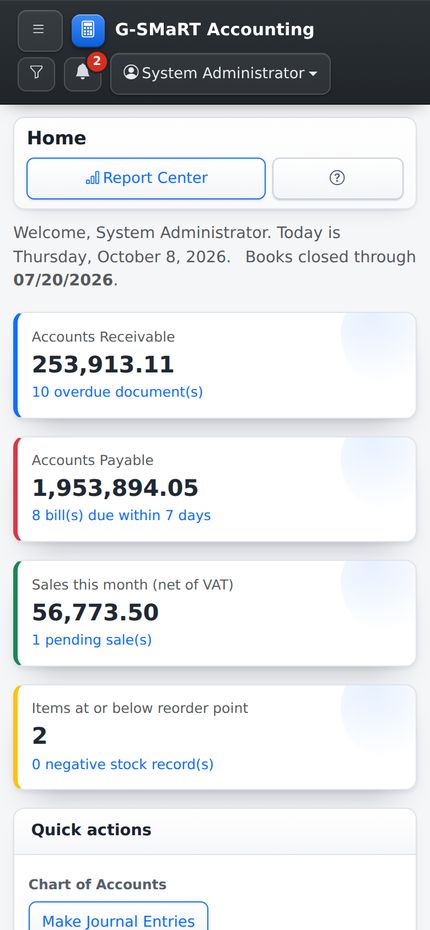
Tap the menu button to open the menu. It slides in as a panel headed Menu, with the same modules as on a computer. Tap a page to open it, or tap the cross at the top right to close the panel.
Forms put their boxes one under the other, and the Save, Save & New and Cancel buttons stay at the foot of the screen.
Good to know on small screens:
- A table wider than the screen scrolls sideways inside its own box: swipe the table, not the page. A soft shadow on the right edge shows that more columns are out of sight. Report lines stay on one line so they can be followed across; only long memos and descriptions wrap.
- Boxes and buttons are large enough to tap, and text boxes are sized so the phone does not zoom in when you tap one.
- The list of a type-to-search box is drawn in the part of the screen the keyboard leaves free, with the phone held upright or on its side.
- On the Find page, each transaction found is shown as a small block, and a drop-down replaces the sortable column headings.
- The POS Register has its own phone layout; see Point of Sale.
If something goes wrong
| What you see | What to do |
|---|---|
| Access denied | Your role does not allow the page or the action. Ask your administrator. |
| Your session expired or the form was already submitted. Go back, refresh the page and try again. | The form was sent twice, or your session changed (for example you logged in again in another tab). Go back, reload the page, enter the data again and save. |
| Page not found | The address is wrong. Use the menu. |
| Database update needed | The program was updated and the database needs the matching update. Nothing is lost. Ask your administrator (with several companies, the Super Admin) to run it, then click Reload. |
| A red box above a form | The form was not saved. Correct what the box says and save again. |
| You were logged out after a period of inactivity. | Log in again. Save long forms before the time-out. |
For anything else, click the Help button of the page you are on, or ask your administrator.